When using an Android phone or Chromebook, first you'll need to select the appropriate network, Staff or Student. After doing so, you'll be prompted with a list of options:
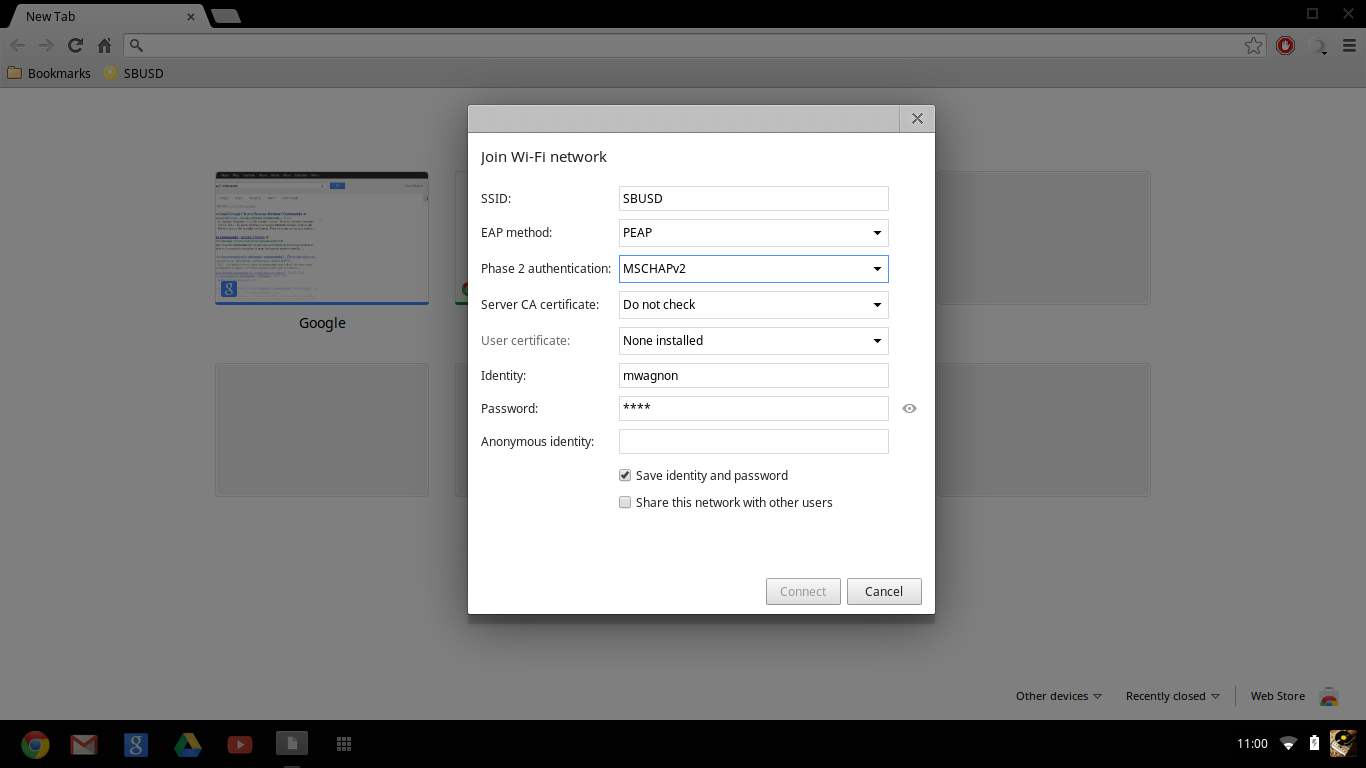
- EAP Method: PEAP
- Phase 2 Authentication: MSCHAPv2
- CA Certificate: Do not check or Do not validate (see note below if this isn't an option)
- Identity: [enter your username here]
- Anonymous Identity: [leave blank]
- Password: [enter your computer/email password here]
NOTE: if you are unable to select Do not check or Do not validate for the CA Certificate, set it to Use system certificates. You'll also need to supply a Domain, which you should enter k12us.com
That will get you on the WiFi. If you have an old connection with an old password or tried to set it up using different settings then above and are having problems, look for the option to "Forget" the wireless connection and start over. That's the cleanest way and is the best way to ensure you have the right settings to connect to our WiFi network.
Was this article helpful?
That’s Great!
Thank you for your feedback
Sorry! We couldn't be helpful
Thank you for your feedback
Feedback sent
We appreciate your effort and will try to fix the article